|
Contributed By:
Cliff Hobbs [MVP
ConfigMgr]
The main reason for wanting to use Stand-Alone media to build a machine
using OSD is to save pulling large amounts of data (OS image, Packages, etc.)
across your network which includes Device Drivers.
Using Stand-Alone media does present a problem
when it comes to Device Drivers though. As there is no assumed
connectivity to the ConfigMgr infrastructure at the time the machine is
built, when device drivers need to be installed the logic and process behind
the Auto Apply Drivers process used when a machine is network built cannot
be leveraged. So how do you ensure
that only the device drivers that apply to a machine get applied to a
machine when it is built from Stand-Alone media? The
answer is you need to create an Apply Driver Package step for each different
hardware type and add this to your Task Sequence (TS). A WMI query can then be
used that basically says if the machine is a certain make/ model then apply
the drivers in the Package. If there's no match the TS continues to
the next step. In order to be able to create the WMI query
for each Apply Driver Package, you need to retrieve the value required for
the WMI query from each hardware make/ model you want to target.
Retrieving the Model Value
from WMIC
To do this:
| 1. |
Log on to the first model of
computer that is to be deployed. |
| |
|
| 2. |
Open a Command Prompt.
|
| |
|
| 3. |
Type:
WMIC CSProduct Get Name
|
| |
|
| 4. |
Compile a list of machine models and besides each model record the
name displayed on the screen when the above command is run.
For example if the command is run on a
HP 8530
and
the command returns
HP Elitebook 8530w as the
Name
record
HP Elitebook 8530w. |
| |
|
| 5. |
Repeat this process on each of the hardware model types that are in
scope for OSD.
|
To try and take some of the hard work out of this see the
List of WMIC CSProduct Get
Name Results for various Makes and Models of machines
which contains a list of machine and the value returned when the
WMIC CSProduct Get Name command is run. If you'd
like to contribute any other machines/ values to this table please email
them over to me and I'll update the list mentioning your contribution.
Creating the
WMI Query for each Model of Machine
Once you've got your list of machine models and WMIC names you then
then to edit your Task Sequence that is going to run as part of your
Stand-Alone media and do the following:
| |
|
| 1. |
Click the OS Installation
and Setup Group in
the TS. |
| |
|
| 2. |
Click the Apply Driver Package TS Step. |
| |
|
| 3. |
In the Name field
change the name to the model number of a machine that is to be
managed by OSD for example
HP DC7700. |
| |
|
| 4. |
Click Browse… and
select the corresponding Driver Package from the
Select a Package screen
that matches the name of this TS Step then click
OK. |
| |
|
| 5. |
Click the Options tab. |
| |
|
| 6. |
Clear the Disable
this step checkbox (if it is checked). |
| |
|
| 7. |
Click Add Condition
and select Query WMI
from the dropdown list. |
| |
|
| 8. |
Leave the WMI Namespace
set to root\cimv2. |
| |
|
| 9. |
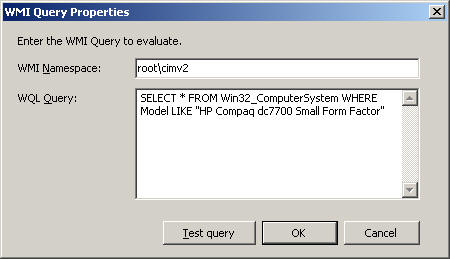
Type the following query in the WQL Query box:
SELECT * FROM Win32_ComputerSystem WHERE Model LIKE "<model
number>"
where "<model
number>" is the model number for the Driver Package in
question based on the WMIC results.
For example if the Drive Package this TS Step is based on is
for a HP DC700 and the value gathered for this model
was
“HP Compaq dc7700 Small Form
Factor” then specify “HP
Compaq dc7700 Small Form Factor” as shown below:
|
| |
|
| |
|
| 10. |
Click OK on the
WMI Query Properties
screen. |
| |
|
| 11. |
Click the Apply
button. |
Once you've created the Apply Driver
Package TS Step if you have other models of machines then
simply copy the Step you've just created and modify the values for the new
Step accordingly using the process above (so if you've got 10 models of
machine to manage you'll need 10 TS Steps - one for each model).
TIP: If you have a lot of models to
manage, to keep the console tidy you might want to consider adding a New
Group as following for your Apply Driver Packages:
| 1. |
Click the OS Installation
and Setup Group. |
| |
|
| 2. |
From the Add menu
select New Group. |
| |
|
| 3. |
Click the New Group
under the OS Installation
and Setup Group. |
| |
|
| 4. |
In the Name field
change the name to Apply
Driver Package. |
| |
|
| 5. |
Move the Apply Driver
Package group down until it is after the
Auto Apply Drivers TS
Step. |
| |
|
| 6. |
Drag and drop the Apply
Driver Package TS Step under the
OS Installation and Setup
Group onto the folder icon beside the
Apply Driver Package
group so it appears indented underneath it. |
| |
|
| 7. |
Click the Apply Driver
Package TS Step under the
Apply Driver Package
group. |
| |
|
| 8. |
Carry on from Step 3. in
Creating
the WMI Query for each Model of Machine. |
|