|
Contributed By:
Cliff Hobbs [MVP
ConfigMgr/ SMS]
There are a couple of ways to tell depending on whether you have access to
the Admin Console or not.
Via the Admin Console
If
you want to check the version of ConfigMgr
running on the Site Server your Admin console connects to
by default:
- Load the
ConfigMgr Administrator Console.
- Navigate to "System
Center Configuration
Manager
| Site Database (<site_code>
– <description>)
| Site Management".
- Right-click
the relevant Site and from the context menu select "Properties"
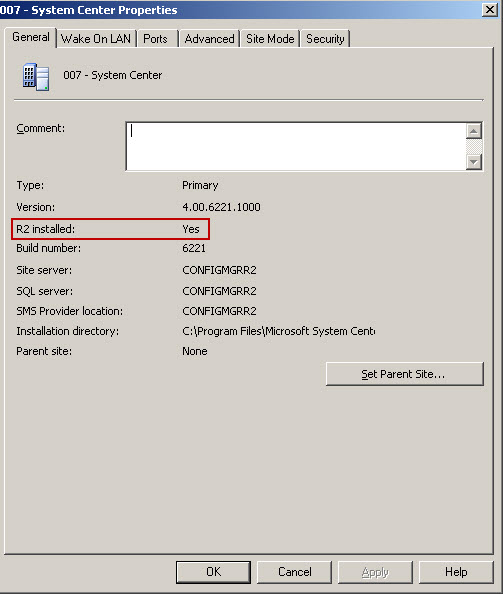
which will display the "<site_code>
– <description>
Properties"
screen. This shows the version number (which
for ConfigMgr 2007 will always be 4.00),
with the build number as follows:
-
RTM = 5931
-
SP1 = 6221
-
SP2 =
6487
NOTES:
-
If you have an International Client Pack
(ICP), installed then the second digit of the last block will either
be a "4" for ICP 1 or a "7" for
ICP 2. For example on a ConfigMgr 2007 Site Server with ICP 2
installed the version number will show as "4.00.6487.2700".
-
If R2 is installed You will see "Yes" beside "R2
installed:" on this screen as shown below:
Without the Admin Console
[added 02/07/10]
If
you don't have access to the ConfigMgr Admin
Console or if loading it would take a significant amount of time there are a
couple of ways of finding out the version number
of a ConfigMgr
Site Server:
-
Setup.exe Properties
-
Registry
Setup.exe
Properties
- Navigate to the "<drive>:\Program Files\Microsoft
Configuration Manager\bin\i386" directory (or the drive or
directory where ConfigMgr has been installed to).
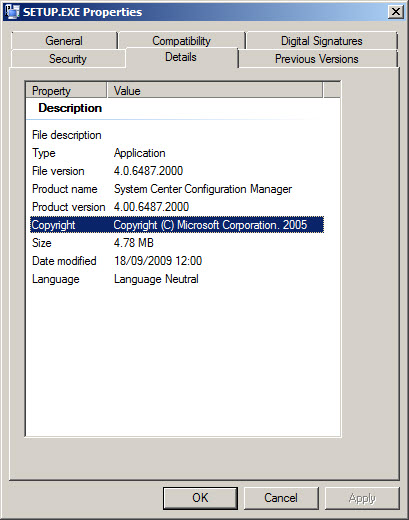
- Right-click "SETUP.EXE" and select
"Properties" from the context menu.
- Click the "Details" tab.
- The "Product version" field displays the version of
ConfigMgr as shown below.
NOTE: As
R2 doesn't change the version number this method will not tell you if R2 is
installed on the Site or not.
Registry
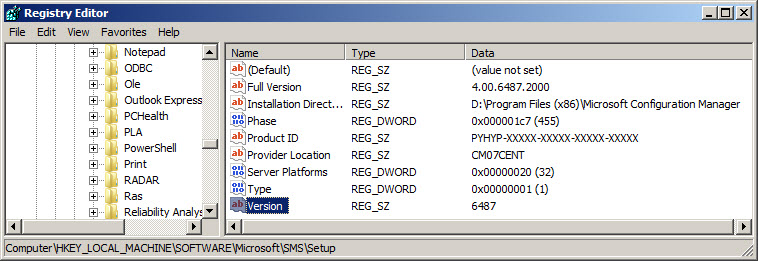
The version number is stored in the following Registry Key as shwon below
for a SP2 Site Server:
HKEY_LOCAL_MACHINE\SOFTWARE\Microsoft\SMS\Setup\Version
|